Introduction
CNH offers a range of portals, apps, and APIs to help you connect with your machine and operational data.
To manage your API access and account settings, simply sign up and log in to the Developer Portal. For development purposes, you can explore our API documentation on SwaggerHub and use ready-made examples available in Postman collections.
CNH Identities
The diagram below describes relationships between identities and CNH solutions.
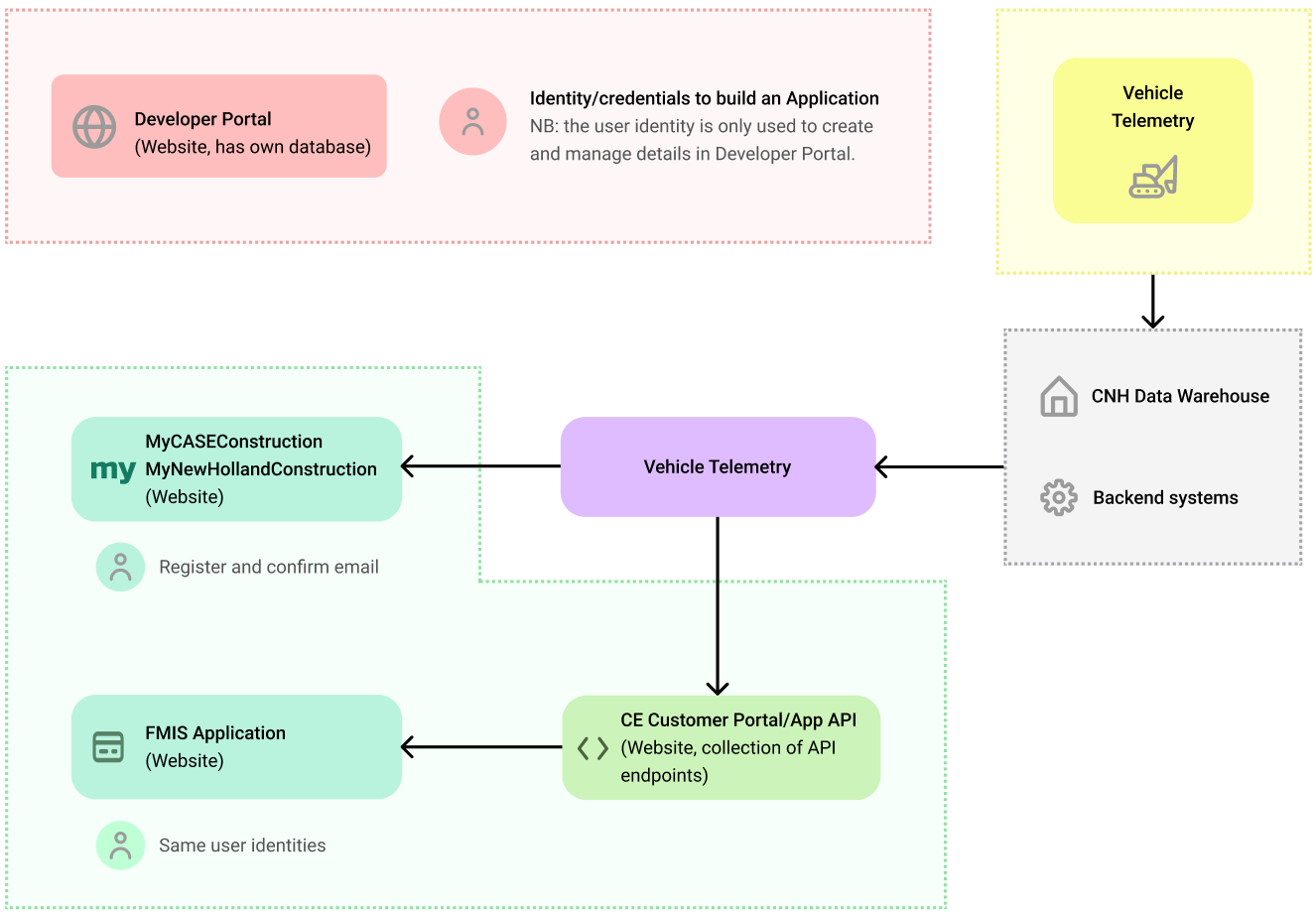
How to Access a Construction Equipment Portal Account
To access machine data through the API, you must be part of the company's account on the Construction Equipment Portal (MyCaseConstruction or MyNewHollandConstruction). Access is granted by the account administrator, who can invite you as a user. Once added, you'll be able to retrieve machine-related telemetry data via API.
Steps to Integrate your FMIS Application with the Construction Equipment Portal API
The user login you create in the Developer Portal is only used there. A separate login is used on Construction Equipment Portal (MyCaseConstruction or MyNewHollandConstruction), and when authenticating through the Construction Equipment Portal.
- Sign up on the Developer Portal. Create your Login and Password.
- Provide details about your Company.
- Provide details about your Application. You can read more about Application Details.
- Read about the Construction Equipment Portal details available endpoints.
- Read about working with Refresh and Access Tokens and using our supplied Postman collections.
- Implement your application, which will use MyCaseConstruction or MyNewHollandConstruction.
Steps to Test your FMIS Application with Construction Equipment Portal
- If you do not have an existing Construction Equipment Portal (MyCaseConstruction or MyNewHollandConstruction)Account to test, create your own using one of our Portals. Before creating new administrator users, it is essential that your dealership has already created your company account in Construction Equipment Portal (MyCaseConstruction or MyNewHollandConstruction)and that you have received the invitation email to complete your initial registration. Once the first administrator has registered, you will be able to create additional administrator users from the “Users” section in the main menu of the Construction Equipment Portal. Production environment Construction Equipment Portal links : CASE Construction Equipment https://mycaseconstruction.com/ New Holland Construction Equipment https://mynewhollandconstruction.com/)
- Choose from the Case Construction Equipment or New Holland Construction Equipment. Each user will need to agree to the Terms and Conditions on the respective brand portal.
- Add account users with the Administrator title. These users will be able to log into the Construction Equipment Portal Account to access vehicle telemetry data.
- Ensure your new Construction Equipment Portal (MyCaseConstruction or MyNewHollandConstruction)login credentials work by accessing one to the tool once.
- Test your Application by logging in and consenting to use the Construction Equipment Portal (MyCaseConstruction or MyNewHollandConstruction)API and then calling one or more of the API endpoints.
Construction Equipment Portal API User Login Requirement
Every user (per email login) who wants to access an Account’s data must meet the following requirements:
• Be invited into that Account.
• Have the Administrator title.
• Logged in at least once into the Construction Equipment Portal (MyCaseConstruction or MyNewHollandConstruction).
Virtual Vehicle Testing for the Vehicle Telemetry Data
If you do not have access to live CNH vehicles in a Construction Equipment Portal Account, we can provide limited temporary virtual vehicle data into your test account in the lower non-Production environment. You can open a support ticket to inform us of your need for virtual vehicle data.